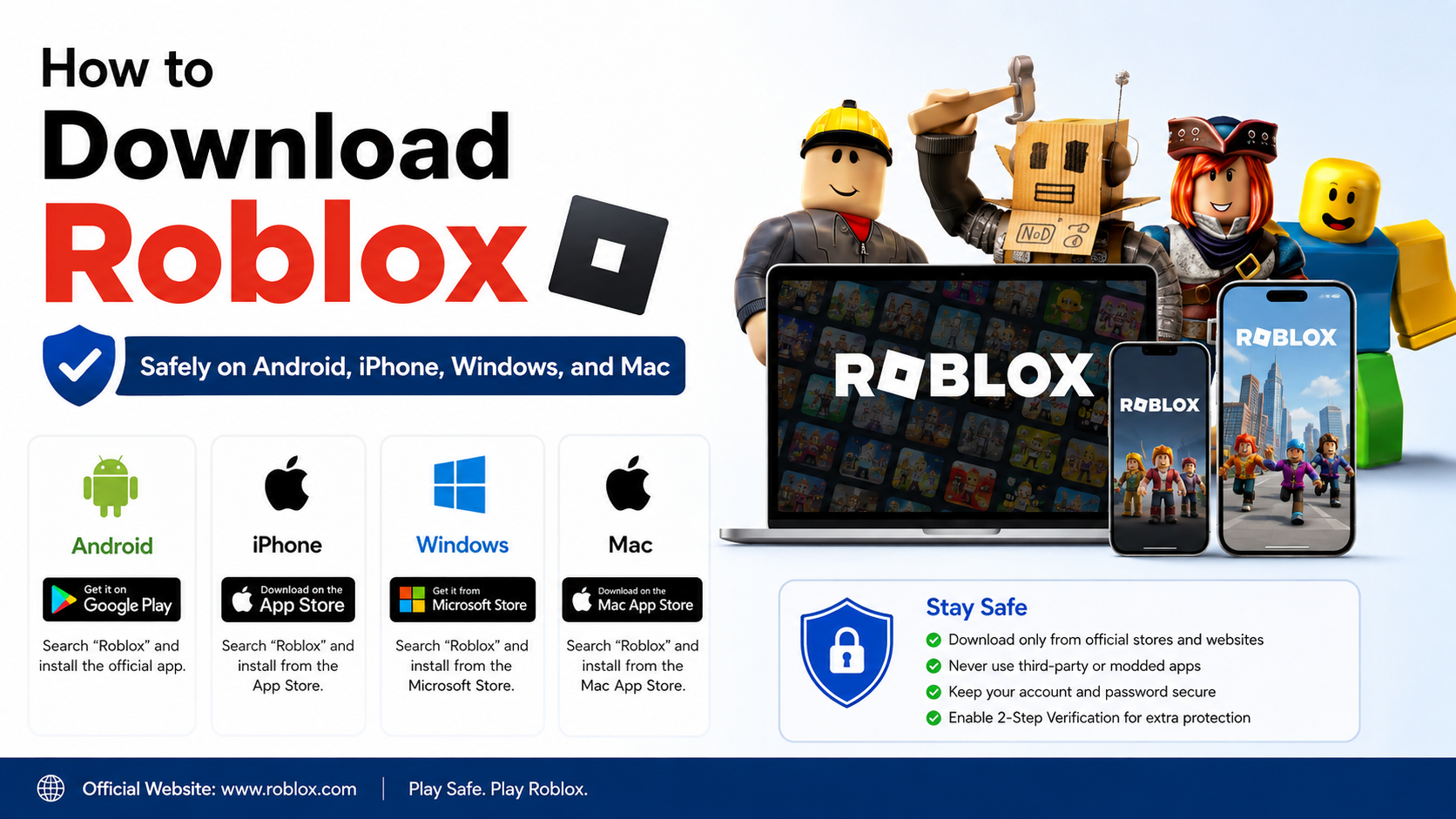
How to Download Roblox Safely on Android, iPhone, Windows, and Mac
The safest way to download Roblox is through the Google Play Store, Apple App Store, Microsoft Store, or Roblox’s official website. Avoid APK-mod sites, “free Robux” installers, cracked clients, and unofficial mirrors. This guide explains the correct installation method for users in India, current platform requirements, and solutions to common download problems.
Key Takeaways
- Android users should install Roblox from Google Play; Android 8.0 or newer and OpenGL ES 3.0 support are required.
- iPhone and iPad users need iOS/iPadOS 14 or later.
- Windows users can install the new “Roblox - Windows” app from Microsoft Store or use the official Roblox website.
- Mac users can download Roblox from Roblox.com; macOS 10.13 High Sierra or later is supported.
- Roblox is free to download, but Robux and optional in-game purchases cost extra.
- Never install a Roblox APK, injector, executor, or modified client from an unknown website.
How to Download Roblox on Android

Roblox is available through the official Google Play listing. The app requires Android 8.0 or later, and the phone or tablet must support OpenGL ES 3.0. Roblox also notes that some older chipsets may show an unsupported-device warning even when the Android version is sufficient. (Roblox mobile requirements)
Steps to install Roblox from Google Play
- Open the Google Play Store on your Android phone or tablet.
- Search for Roblox.
- Confirm that the developer is Roblox Corporation.
- Tap Install.
- Wait for the download to finish. Use Wi-Fi if your mobile data connection is slow or limited.
- Tap Open, then sign in or create a Roblox account.
- Select an experience and tap Play.
The Play Store listing is preferable to downloading an APK because Google Play handles app updates and checks the package against your device. App availability can vary if a Google account, device, or network has regional restrictions.
If Roblox does not appear in Google Play

Check the following:
- Open Settings > About phone and confirm the Android version.
- Update Android and Google Play system components.
- Make sure your device has free storage.
- Clear Play Store cache from Settings > Apps > Google Play Store > Storage.
- Check whether parental controls or a managed school/work account blocks the app.
- If the device uses an unsupported processor or graphics chipset, installing an APK will not reliably solve the problem.
Roblox requires an internet connection, and its support documentation recommends approximately 4–8 Mb/s for a single-use household. Actual performance also depends on latency, Wi-Fi quality, and the experience being played.
How to Download Roblox on iPhone or iPad
Install Roblox from the official Apple App Store listing. Roblox requires iOS 14 or later on iPhone and iPadOS 14 or later on iPad. Supported minimum device families listed by Roblox include iPhone 6s, iPhone SE, iPad Air 2, iPad mini 4, iPad (5th generation), and iPad Pro models. (Roblox mobile requirements)
Steps to install Roblox on iPhone or iPad
- Open the App Store.
- Search for Roblox.
- Check that the seller/developer is Roblox Corporation.
- Tap Get, then authenticate with Face ID, Touch ID, or your Apple ID password.
- Open Roblox after installation.
- Log in to an existing account or select Sign Up.
- Choose an experience to start playing.
If you are using an Indian Apple ID, search the App Store directly rather than relying on a foreign-region link. The listing name and availability should still identify Roblox Corporation as the developer.
iPhone installation problems
If the download is stuck or unavailable:
- Go to Settings > General > Software Update and install available updates.
- Check free space in Settings > General > iPhone Storage.
- Confirm that Screen Time restrictions allow app installation.
- Restart the device and retry on a stable Wi-Fi network.
- Sign out and back in to the App Store only if other downloads are also failing.
Do not install an iOS “IPA” file from a third-party site. Such files may be modified, require unsafe profiles, or compromise your Apple ID.
How to Download Roblox on Windows
Roblox supports 64-bit Windows 10 and Windows 11. Roblox’s current support guidance identifies the newer Microsoft Store application as “Roblox - Windows” with a blue icon; the older listing is simply called “Roblox.” (Microsoft Store app guidance)
Method 1: Install Roblox - Windows from Microsoft Store
- Open Microsoft Store from the Windows Start menu.
- Search for Roblox - Windows.
- Verify that the publisher is Roblox Corporation.
- Select Get or Install.
- Launch the app and sign in with your Roblox account.
The new Store app is the preferred Windows option when it is available to you. You may need to log in again after replacing an older Roblox installation.
Method 2: Install through the official Roblox website
- Open Roblox.com/download in Microsoft Edge, Chrome, or Firefox.
- Sign in to Roblox.
- Open any experience.
- Click the green Play button.
- When the browser offers to install Roblox Player, accept the download.
- Open the downloaded installer and allow it to complete.
- Return to the experience and click Play again.
Roblox’s official installation instructions state that selecting Play on an experience triggers the Player installation. The website supports Chrome, Firefox, and Microsoft Edge on Windows. (Roblox installation guide)
Windows requirements beyond the operating system
Roblox lists these baseline recommendations:
| Component | Roblox guidance |
|---|---|
| Operating system | 64-bit Windows 10 or Windows 11 |
| Graphics | DirectX 10 or higher feature-level support |
| Memory | At least 1 GB RAM recommended |
| Storage | Approximately 300 MB recommended for installation |
| Processor | Recent processor, around 1.6 GHz or better |
| Browser | Chrome, Firefox, or Microsoft Edge |
| Internet | About 4–8 Mb/s for a single-use household |
These are not guarantees of smooth performance. Large experiences, crowded servers, background downloads, and entry-level Indian laptops can still produce lag.
How to Download Roblox on Mac
Roblox supports macOS 10.13 High Sierra and newer. Roblox also states that Apple Silicon Macs, including M1-based models, are supported. Compatible browsers include Chrome, Firefox, and Safari. (Mac troubleshooting and requirements)
Steps to install Roblox on macOS
- Visit Roblox.com using Safari, Chrome, or Firefox.
- Sign in to your account.
- Open any experience and click Play.
- Accept the Roblox Player download prompt.
- Open the downloaded
.dmgor installer file. - Follow the on-screen instructions to place Roblox in the Applications folder.
- Return to your browser and click Play again.
If macOS asks whether to open Roblox, choose Open only when the application came from Roblox’s official website. If Safari does not launch an experience correctly, Roblox suggests trying Chrome or Firefox.
Roblox is not officially supported on Linux. ChromeOS devices may run the Android app when they meet Roblox and Google Play requirements, but performance and availability vary by Chromebook model.
Is Roblox Free to Download in India?
Yes. Downloading and installing the Roblox application is free on supported platforms. Roblox uses optional purchases such as Robux, avatar items, subscriptions, and experience-specific products. The amount charged in India can depend on the platform, taxes, exchange rates, and the purchase option shown at checkout.
A child should not use a parent’s UPI, card, or app-store payment account without permission. Use Google Play, Apple, or Microsoft account purchase controls and Roblox parental settings to manage spending.
How to Download Roblox Safely
Use this checklist before installing:
- Download only from Google Play, the Apple App Store, Microsoft Store, or Roblox.com.
- Verify the developer is Roblox Corporation.
- Check the website address carefully; look for
roblox.comand HTTPS. - Keep Android, iOS, Windows, macOS, and antivirus software updated.
- Avoid “Roblox premium APK,” “unlimited Robux,” executors, scripts, injectors, and cracked clients.
- Never enter your Roblox password on a website promising free Robux.
- Do not disable Google Play Protect, Windows Security, or macOS security prompts to force an installation.
- Enable two-step verification on your Roblox account and use a unique password.
Unofficial downloads can contain malware, credential-stealing code, unwanted advertisements, or modified game files. They may also cause account action if they interfere with Roblox’s software.
Common Roblox Download and Installation Problems
“This app isn’t compatible with your device”
Update the operating system, check the minimum requirements, and confirm that the device supports the required graphics features. If the app store still blocks installation, the hardware may be unsupported.
Roblox keeps asking you to install it on Windows
Restart Windows, close Roblox and your browser, then try the Play button again. Roblox identifies corrupted temporary files, firewall restrictions, or an incomplete installation as common causes. Reinstalling from Microsoft Store or Roblox.com can resolve an endless installation loop. (Desktop troubleshooting)
Roblox downloads but will not open
Check your internet connection, restart the device, and temporarily close conflicting overlays, auto-clickers, VPNs, or game-recording utilities. Do not permanently disable security software; instead, follow its documented process for allowing a trusted application.
Roblox crashes or lags after installation
Reduce in-game graphics quality, close background apps, use a 5 GHz Wi-Fi network where available, and avoid downloading large files while playing. On mobile data, signal strength and network congestion can affect gameplay even when the app itself installed correctly.
Frequently Asked Questions
What is the safest way to download Roblox?
Use the official store for your device: Google Play on Android, the App Store on iPhone/iPad, Microsoft Store on Windows, or Roblox.com for desktop installation.
Can I download Roblox without an APK?
Yes. Android users do not need an APK. Install Roblox directly from Google Play, which is safer and automatically delivers updates.
Can Roblox run on Windows 7 or Windows 8?
Roblox’s current computer requirements specify 64-bit Windows 10 or Windows 11. Older Windows versions are outside the current supported requirement.
Can I install Roblox on a MacBook?
Yes, if the Mac runs macOS 10.13 High Sierra or newer. Roblox supports both Intel Macs and Apple Silicon models such as M1 Macs.
Is Roblox available for Linux?
Roblox does not officially support Linux. Workarounds using compatibility layers or virtual machines may stop working after updates and are not official installation methods.
Why is Roblox not showing in the Indian Play Store?
The usual causes are an incompatible device, outdated Android version, parental controls, managed accounts, insufficient storage, or a temporary Play Store issue. Check each of these before considering any alternative download.
Do I need a Roblox account to install the app?
No account is normally required to download the application, but you need a Roblox account to sign in and play most experiences.
Is Roblox Studio the same as Roblox Player?
No. Roblox Player is used to play experiences. Roblox Studio is the separate creation tool for building and publishing experiences, and it is designed for Windows and Mac computers.