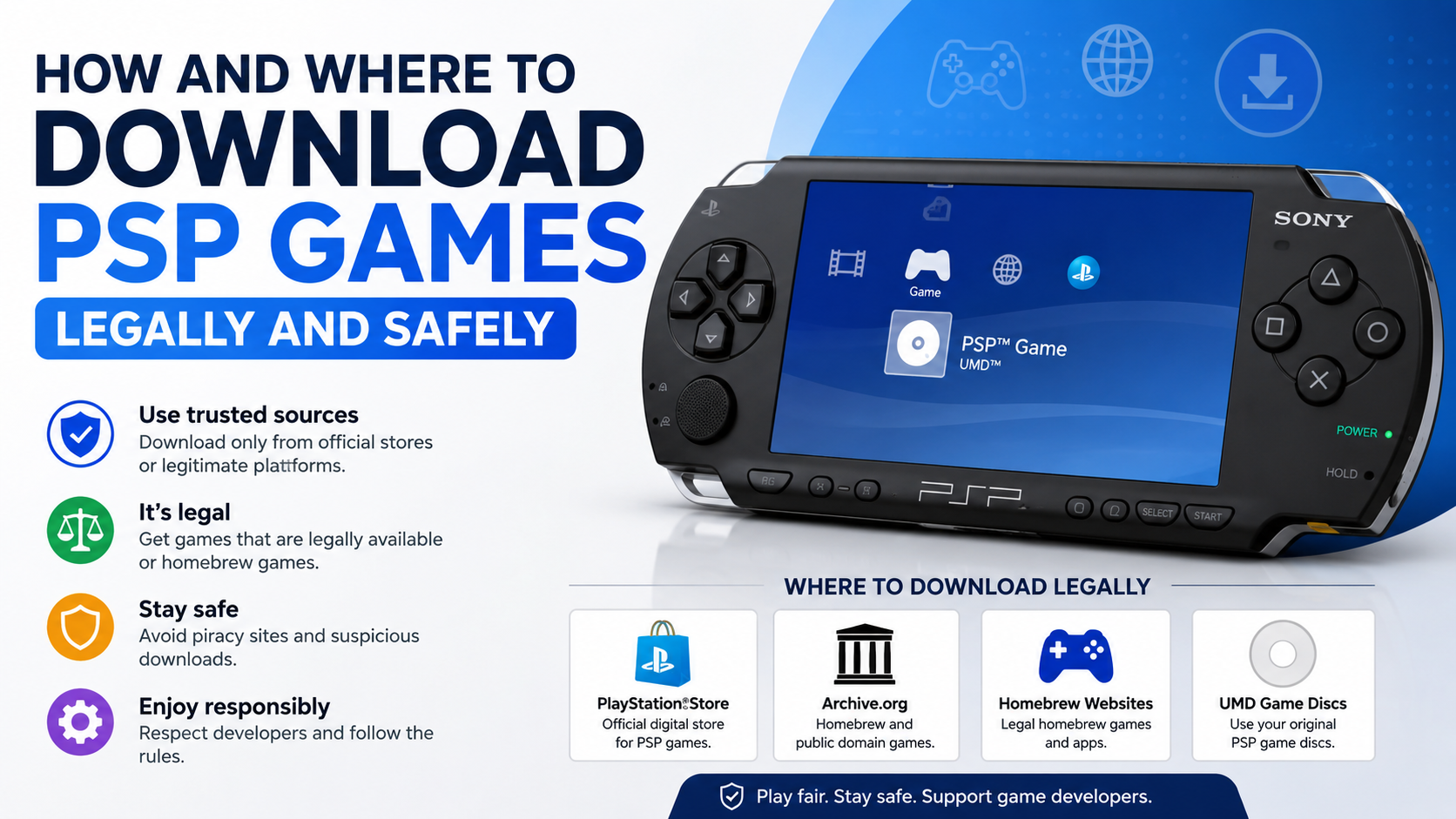
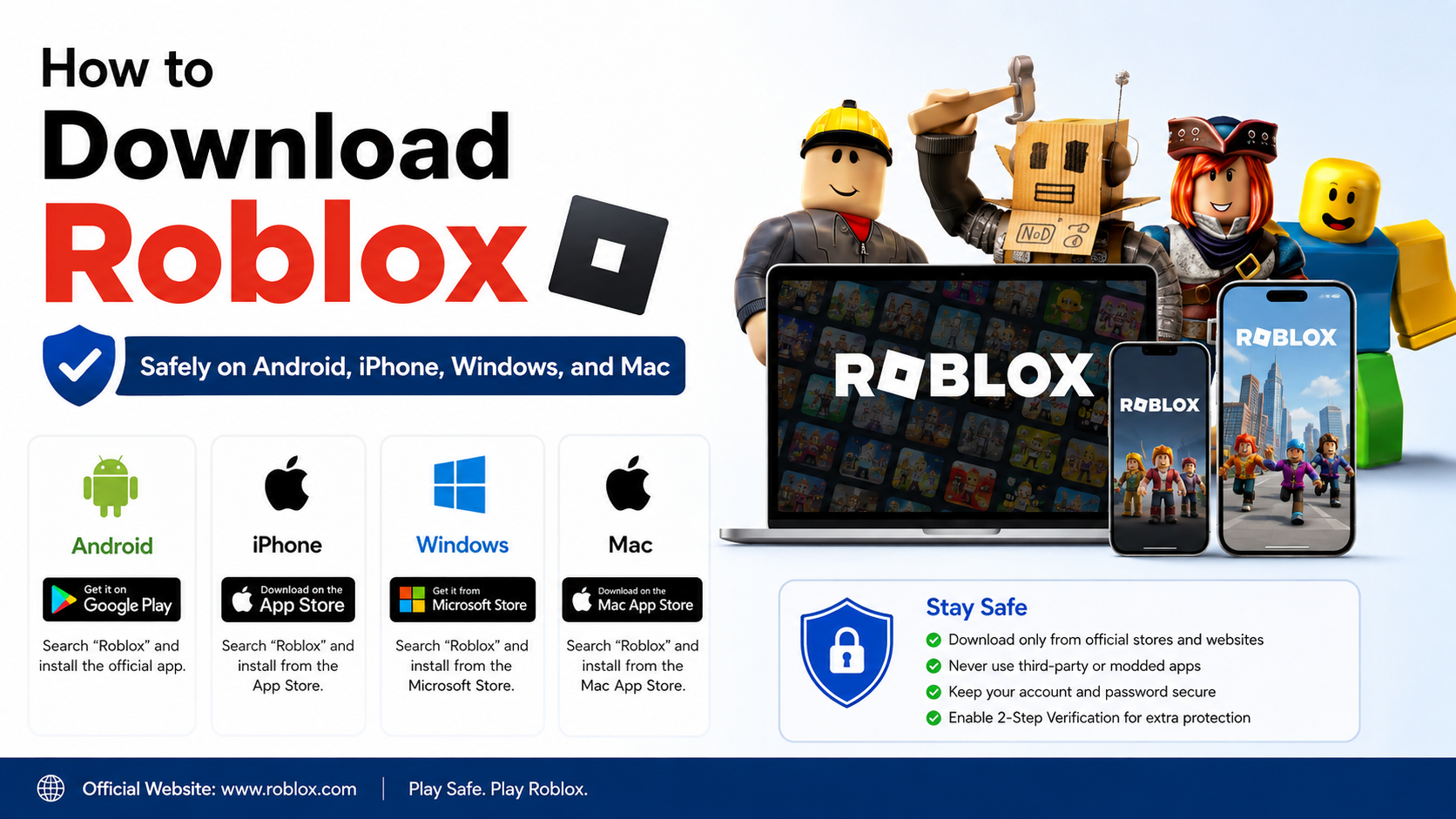
How to Download What Game Safely From Its Official Store or Website
If you searched for “how to download what game,” you probably want to know where to get a specific game and how to install it without downloading malware, fake APKs or pirated files. The safest answer is simple: use the game’s official store listing or the publisher’s verified website. Check compatibility, download only the correct version, and avoid links promising free paid games or modified features.
This guide explains the safest process for Android, iPhone, Windows, macOS and PC game launchers, including what to do when a download fails.
Key Takeaways
- Download mobile games from Google Play or Apple’s App Store whenever they are available there.
- On a PC, use Microsoft Store, Steam, Epic Games Store or the publisher’s official launcher.
- Verify the developer name, ratings, reviews, age rating and supported devices before installing.
- Avoid cracked games, “unlimited money” APKs, torrents and unofficial download mirrors.
- Keep enough storage, update your operating system and use a reliable Wi-Fi connection for large games.
- If an APK is unavoidable, download it only from the game publisher’s official site and keep Google Play Protect enabled.
What “Official Download” Means

An official download is provided directly by:
- The platform owner, such as Google Play, Apple, Microsoft or a console manufacturer.
- A recognised game store, such as Steam or Epic Games Store.
- The game publisher or developer through its verified website or launcher.
A third-party mirror may host the same file, but it is not automatically trustworthy. Files can be modified, bundled with unwanted software, or replaced with malware. A search result, social-media post or YouTube description is not proof that a download link is official.
Before clicking Download, check that:
- The website address uses the correct company or publisher domain.
- The developer name matches the game’s official website.
- The app has a normal description, screenshots, privacy information and support details.
- The download does not require disabling security protections.
- The price and in-app purchase information are clearly shown.
How to Download a Game on Android
Google says Android apps and games can be installed through the Google Play Store or Play’s website. You can search for content, select it, tap Install or its price, and follow the instructions. Play also filters results for devices linked to your account. Google Play Help
Steps using Google Play Store

- Open the Google Play Store on your Android phone or tablet.
- Tap the search bar and enter the exact game title.
- Select the result that has the correct icon and developer name.
- Review the game’s rating, screenshots, age rating, permissions and “Data safety” information.
- Check whether your device is listed as compatible.
- Tap Install for a free game, or tap the price and complete payment for a paid game.
- Wait for the download and installation to finish.
- Tap Open, or find the game in your app drawer.
A free download may still contain advertisements, optional purchases or a subscription. In India, check the final price in Indian rupees and confirm whether recurring billing is involved.
If the game is not on Google Play
Some publishers distribute an Android package (APK) from their own website. An APK is the installation file used by Android. Sideloading means installing that file outside Google Play.
Use this method only when:
- The publisher clearly links to the APK from its official website.
- The file is intended for your Android version and device architecture.
- You understand that updates and security screening may differ from Play Store downloads.
Google Play Protect checks Play Store apps and scans potentially harmful apps from other sources. It can warn about, disable or remove harmful software. Google recommends keeping it enabled. Google Play Protect guidance
Never install an APK advertised as a “mod,” “hack,” “unlimited coins” or “free premium version.” These files can steal account details, display fraudulent ads or request unnecessary permissions.
How to Download a Game on iPhone or iPad
Apple’s official process is to use the App Store. Open the store, search or browse the Games tab, tap Get or the price, and authenticate with Face ID, Touch ID or your Apple Account password. Apple Support
- Open the App Store.
- Tap Search and type the game’s exact name.
- Confirm the developer, screenshots, ratings and compatibility information.
- Tap Get for a free game or tap the listed price.
- Authenticate the download when prompted.
- Wait for installation, then tap Open.
If you see Open instead of Get or a price, the game is already associated with your Apple Account.
Apple may require a valid payment method even for a free download, particularly when an account has a billing issue. If an iPhone or iPad cannot download an app, Apple recommends checking payment details, restarting the device and prioritising the download from the Home Screen. Apple download troubleshooting
How to Download a Game on Windows PC
Windows users can obtain games through Microsoft Store, Steam, Epic Games Store or a publisher’s official launcher. The correct choice depends on where the game is sold.
Microsoft Store
Microsoft’s steps are:
- Select Start and open Microsoft Store.
- Choose Gaming, or search for the game.
- Select the game and click Get or its price.
- Sign in with a Microsoft account if requested.
- Open Library to view the download and installation status.
Microsoft Store games may update automatically, but the game itself still has separate hardware requirements. Microsoft Support
Steam
For a Steam game:
- Download Steam from the official Steam website.
- Install and open the Steam client.
- Sign in or create an account.
- Search for the game in the Store.
- Purchase it or select Add to Account if free.
- Open Library, select the game and click Install.
- Choose an installation drive and wait for the download to complete.
Steam normally manages updates, game files and cloud features through its client. Do not download a “Steam game installer” from an unrelated file-sharing page.
Epic Games Store
Epic instructs users to download the launcher from its Store website, then install games from the Library. Epic Games Launcher instructions
- Visit the official Epic Games Store and click Download.
- Install and open the Epic Games Launcher.
- Sign in.
- Open Library and select the game.
- Choose an installation folder.
- Click Install and launch the game after the download finishes.
Downloading Directly From a Publisher’s Website
Some PC games are distributed directly by their developer. Start from the publisher’s verified homepage rather than a sponsored advert or random search result.
A safe direct-download process is:
- Confirm the publisher’s domain through the game’s verified social accounts or store listing.
- Open the Download, Get the game or PC version page.
- Select the correct operating system.
- Read the system requirements and licence terms.
- Download the installer.
- Check that the file name and publisher match what the site describes.
- Install, then allow updates through the same launcher or website.
Do not run an installer that suddenly asks for unrelated browser extensions, a cryptocurrency wallet, an antivirus subscription or administrator access without a clear reason.
Platform Comparison
| Platform | Safest source | Typical installation method | Important check |
|---|---|---|---|
| Android | Google Play | Tap Install | Device and Android-version compatibility |
| iPhone/iPad | App Store | Tap Get or price | Apple Account and payment status |
| Windows | Microsoft Store | Click Get | Windows version and hardware requirements |
| Windows/macOS/Linux PC | Steam or Epic | Install launcher, then game | Free disk space and launcher account |
| Any supported PC | Publisher website | Download official installer | Correct domain and signed publisher |
Safety Checklist Before Installing
Use this checklist for any game download:
- Compare the title with the publisher’s official page; fake games often use similar names.
- Check the developer or publisher account, not only the game icon.
- Read recent reviews for reports of crashes, fake listings or aggressive permissions.
- Confirm the required storage. A game may need additional space for updates and temporary installation files.
- Use Wi-Fi for large downloads, especially on Indian mobile data plans.
- Keep Android, iOS, Windows or macOS updated.
- Avoid disabling Play Protect, Windows security or Gatekeeper to force an installation.
- Use a strong, unique password and enable two-factor authentication for the store account.
- Download paid games through a legitimate purchase or subscription; cracked copies create security and copyright risks.
No store can guarantee that every piece of software is suitable for every device. Treat security warnings seriously and contact the store or publisher if a listing looks suspicious.
Common Download Problems and Fixes
“Not compatible with your device”
The game may require a newer operating system, a 64-bit processor, specific graphics hardware or a supported region. Update the device if possible, then check the publisher’s requirements. Do not install a random APK designed to bypass compatibility checks.
Download is stuck
Pause and resume the download, confirm available storage and switch to a stable Wi-Fi network. Restarting the phone, PC or store app can clear a temporary connection problem.
The game installed but will not open
Restart the device, install pending system updates and update the game launcher. On Windows, verify the game files through the launcher if that option is available. Check graphics-driver requirements for PC games.
Payment or account error
Confirm that you are using the intended Google, Apple, Microsoft, Steam or Epic account. Check the payment method, billing address and regional availability. Never give your password or one-time verification code to a person claiming to offer a cheaper download.
The game disappeared from the store
Games can be removed, delisted or restricted by region. Look for an announcement from the publisher and avoid replacement files from unofficial sites. If you previously purchased the game, check your account library or order history.
Frequently Asked Questions
What is the safest way to download a game?
Use the official store for your device—Google Play, App Store or Microsoft Store—or a recognised PC platform such as Steam or Epic Games Store. If the publisher distributes the game directly, use only its verified website.
Can I download a paid game for free?
Only when the publisher or store officially offers a free promotion, trial or giveaway. “Cracked,” “modded” and pirated downloads are unauthorised and may contain malware or stolen accounts.
Is downloading an APK safe?
An APK is safest when it comes directly from the game publisher and matches your device. APKs from unknown mirrors can be modified, outdated or malicious. Keep Play Protect enabled and review permissions before installing.
Why does Google Play say my device is incompatible?
The game may need a newer Android release, a particular processor, graphics capability, screen configuration or region. Check the listing and publisher requirements instead of forcing installation.
Do I need internet access after downloading a game?
Some games work offline, but many require internet access for login, multiplayer, licence checks, updates or additional files. Read the store description and publisher documentation.
How much storage should I keep free?
Keep more free space than the listed download size because installation can require temporary files and later updates. For large PC games, use the launcher’s displayed install size and reserve additional room for patches.
Can I install the same purchased game on another device?
Usually, purchases are linked to the store account, but licence rules and platform support vary. Sign in with the same account and check the game’s terms before installing on another device.