What Is e-Aadhaar and How to Download the Digital Aadhaar Card
e-Aadhaar is the password-protected, digitally signed PDF version of your Aadhaar issued by the Unique Identification Authority of India (UIDAI). It is generally valid in the same way as the physical Aadhaar letter. You can download it online from the official myAadhaar portal using your Aadhaar number, Enrolment ID or Virtual ID (VID), provided your mobile number is registered with Aadhaar. UIDAI defines e-Aadhaar as a digitally signed electronic copy.
Key Takeaways
- e-Aadhaar is an official UIDAI PDF containing your Aadhaar details and QR code.
- Download it only from the UIDAI myAadhaar portal or an official UIDAI mobile app.
- You need an OTP sent to the mobile number registered with your Aadhaar.
- The PDF password uses the first four characters of your name in capital letters and your birth year.
- Masked Aadhaar hides the first eight digits and displays only the last four.
- If your mobile number is not registered, you must update it at an Aadhaar Seva Kendra or through an officially supported UIDAI service.
What Is e-Aadhaar?

e-Aadhaar is the electronic form of your Aadhaar card. It is generated and digitally signed by UIDAI after your Aadhaar number has been issued. The downloaded file is normally a PDF that includes information such as:
- Your name
- Photograph
- Date of birth or year of birth
- Gender
- Aadhaar number, or a masked Aadhaar number
- Address
- UIDAI digital signature
- Secure QR code for verification
The digital signature and QR code allow organisations to verify whether the document was issued by UIDAI and whether its contents have been altered.
Is e-Aadhaar valid?
Yes. UIDAI states that e-Aadhaar is equally valid as the physical Aadhaar letter for applicable identification and address-verification purposes. The UIDAI Aadhaar information page also confirms that Aadhaar downloaded from the UIDAI website and the Aadhaar letter received by post are equally valid.
An organisation may still ask for a specific format, such as a masked copy or another officially accepted identity document. Follow the organisation’s requirements rather than altering the PDF yourself.
What You Need Before Downloading

Prepare the following:
- Your 12-digit Aadhaar number, 28-digit Enrolment ID (EID), or 16-digit VID.
- Access to the mobile phone number registered with Aadhaar.
- An internet-connected phone or computer.
- A PDF reader, such as Adobe Acrobat Reader or your device’s built-in PDF viewer.
The OTP required for e-Aadhaar download is sent to the registered mobile number. If you no longer use that number, online download may not work until your mobile details are updated.
How to Download e-Aadhaar from the UIDAI Website
The official browser method is usually the quickest option.
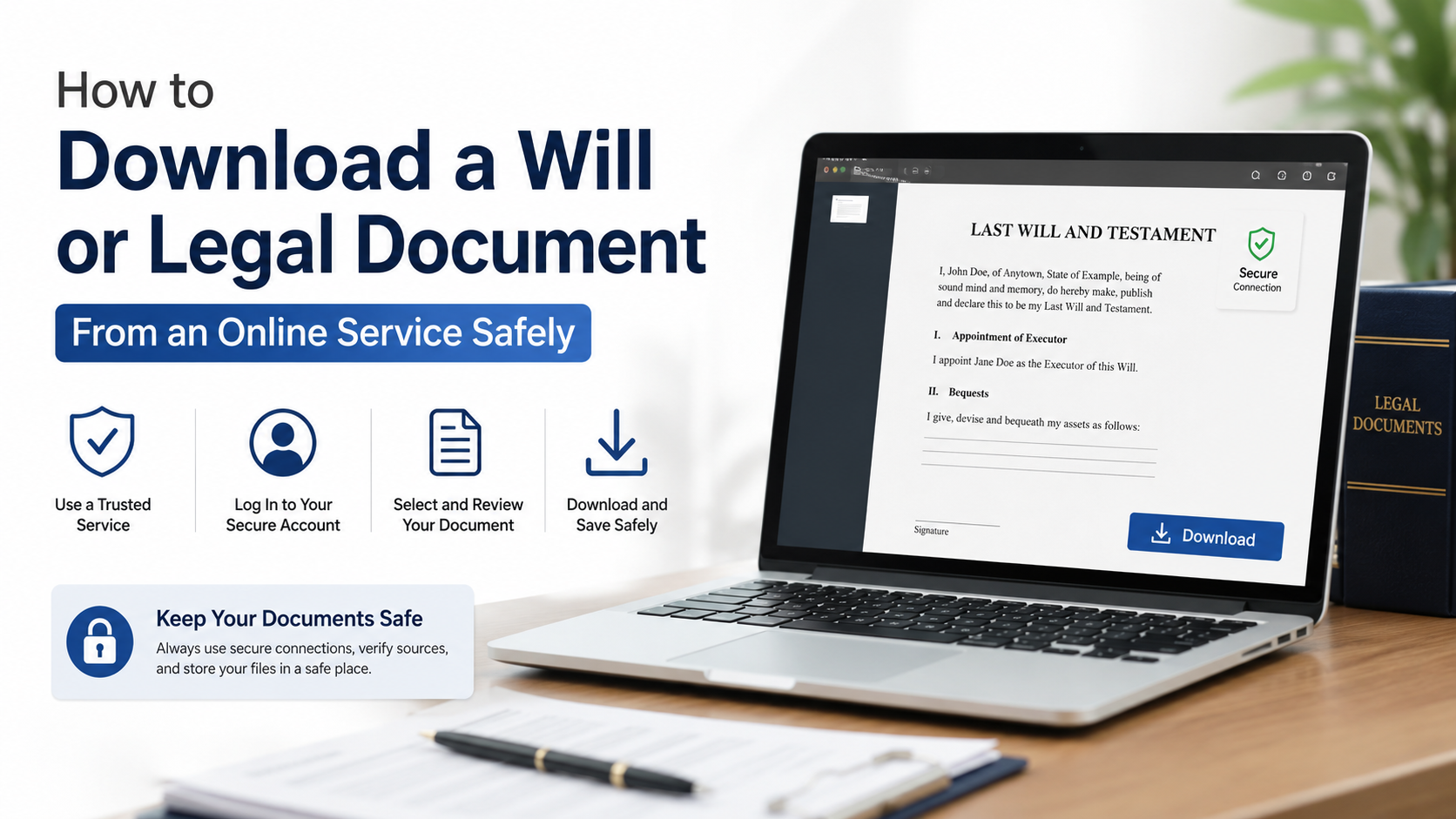
- Open the UIDAI myAadhaar download page.
- Select the identification method you want to use:
- Aadhaar Number
- Enrolment ID
- VID
- Enter the selected number carefully.
- Enter the security code shown on the page.
- Select Send OTP.
- Enter the OTP received on your Aadhaar-registered mobile number.
- If shown, choose Masked Aadhaar when you want only the last four digits visible.
- Complete the download.
- Open the PDF using the e-Aadhaar password described below.
The page design may change as UIDAI updates its portal, but the verification requirement remains an OTP sent to the registered mobile number.
Download using an Aadhaar number
Choose Aadhaar Number, enter the 12 digits without spaces, and request an OTP. This is suitable when you know your Aadhaar number and your registered mobile is active.
Download using an Enrolment ID
Choose Enrolment ID if you do not remember your Aadhaar number but still have your enrolment slip. Enter the enrolment number and the date and time printed on the slip, where requested.
Download using VID
A VID is a temporary, revocable 16-digit number mapped to your Aadhaar. It can be used instead of the Aadhaar number for supported authentication and download services. If you have forgotten your VID, generate or retrieve it through an official UIDAI service before starting the download.
How to Open the e-Aadhaar PDF
The standard password is:
First four characters of your name in CAPITAL letters + year of birth (YYYY)
Examples:
| Name on Aadhaar | Year of birth | PDF password |
|---|---|---|
| Suresh Kumar | 1990 | SURE1990 |
| Sai Kumar | 1990 | SAIK1990 |
| Ria | 1990 | RIA1990 |
| P. Kumar | 1990 | P.KU1990 |
Use the name exactly as printed on Aadhaar. For names shorter than four characters, use the complete name followed by the birth year. Do not add spaces unless UIDAI’s displayed name includes them.
If your PDF does not open, check the spelling, punctuation and birth year shown on your Aadhaar record. The UIDAI e-Aadhaar FAQ provides the password rule and examples.
What Is Masked Aadhaar?
Masked Aadhaar is a privacy-focused version in which the first eight digits are replaced with xxxx-xxxx; only the last four digits remain visible. Your name, photograph, address and QR code may still appear.
Use masked Aadhaar when an organisation only needs to verify your identity but does not need the complete number. Do not assume every service accepts it: banks, employers, telecom providers or government departments may specify whether a full or masked copy is required.
Download e-Aadhaar on a Mobile Phone
You can use UIDAI’s official mobile services, including the current Aadhaar app and supported mAadhaar services. UIDAI’s Aadhaar App FAQ lists e-Aadhaar download among the available services.
General process:
- Install the app from the official Google Play Store or Apple App Store listing linked by UIDAI.
- Register or sign in using the details requested by the app.
- Select the e-Aadhaar download service.
- Enter your Aadhaar-related details.
- Complete OTP or supported time-based OTP authentication.
- Save the PDF securely on your device.
Avoid APK files shared through WhatsApp, Telegram, social media or unknown websites. A modified app can capture Aadhaar numbers, OTPs or other personal information.
e-Aadhaar Download Methods at a Glance
| Method | Information required | Authentication | Best for |
|---|---|---|---|
| Aadhaar number | 12-digit Aadhaar | Registered mobile OTP | Most users |
| Enrolment ID | EID and slip details | Registered mobile OTP | Users awaiting or unable to recall Aadhaar number |
| VID | 16-digit Virtual ID | Registered mobile OTP | Users who prefer not to enter the Aadhaar number |
| Official UIDAI app | Aadhaar details and app registration | OTP or supported TOTP | Mobile users |
Common Problems and Solutions
OTP is not received
- Check that your phone has network coverage.
- Wait briefly before requesting another OTP.
- Make sure the mobile number is the one registered with Aadhaar.
- Check whether SMS filtering or spam protection is blocking UIDAI messages.
- Avoid repeatedly requesting OTPs, as older codes may become invalid.
Mobile number is not linked to Aadhaar
UIDAI requires a registered mobile number for online e-Aadhaar download. Visit an Aadhaar Seva Kendra to update or register your mobile number. Carry the documents and identification requested by the centre.
The Aadhaar number or EID is rejected
Re-enter the number without spaces or extra characters. For an EID, use the enrolment number, date and time exactly as printed on the acknowledgement slip. Check that you are using the correct portal and not an imitation website.
The PDF password fails
Use the first four characters of the name in capital letters followed by the four-digit birth year. Try punctuation where it appears in the Aadhaar name, such as the full stop in P.KU1990.
Digital signature shows a question mark
A PDF viewer may initially display an unvalidated signature. Open the file in a current PDF reader and follow UIDAI’s digital-signature validation instructions. Do not edit, print-to-PDF or resave the document before validation, because doing so can affect signature verification.
Download page is not working
Try an updated version of Chrome, Firefox, Edge or Safari. Clear a temporary browser error by opening a private window, disabling interfering extensions, or switching between Wi-Fi and mobile data. If the portal is under maintenance, try again later through the official UIDAI homepage.
How to Keep e-Aadhaar Secure
- Download only from
uidai.gov.inormyaadhaar.uidai.gov.in. - Never share your OTP, PDF password or full Aadhaar details unnecessarily.
- Do not upload the PDF to random “Aadhaar download” websites.
- Store the file in a password-protected folder or secure cloud account.
- Use masked Aadhaar when the recipient does not require the full number.
- Verify that the website address uses HTTPS and is spelled correctly.
- Do not send an unprotected Aadhaar PDF through public groups.
UIDAI’s toll-free helpline is 1947. Use it for official assistance, complaints and service-related guidance.
Frequently Asked Questions
Can I download e-Aadhaar without a registered mobile number?
Usually no. Online download requires OTP authentication on the mobile number registered with Aadhaar. Update the number at an Aadhaar Seva Kendra if you no longer have access to it.
Is e-Aadhaar the same as an Aadhaar card?
It contains the same core Aadhaar identity information in electronic PDF form and is digitally signed by UIDAI. It is not a separate Aadhaar number.
Can I download Aadhaar using only my name?
The standard e-Aadhaar download service requires an Aadhaar number, Enrolment ID or VID. If you have lost these details, use UIDAI’s official retrieval services or contact 1947.
What is the difference between full and masked Aadhaar?
Full Aadhaar displays all 12 digits. Masked Aadhaar hides the first eight digits and shows only the last four for better privacy.
Can I print e-Aadhaar?
Yes. You may print the downloaded PDF, provided the document remains clear and its QR code and digital-signature information are intact. Some organisations may prefer the electronic PDF for verification.
Can I use VID instead of Aadhaar number?
For supported UIDAI services, VID can be used in place of the Aadhaar number. It is temporary and revocable, so generate or retrieve the current VID through an official UIDAI channel.
Is there a fee to download e-Aadhaar online?
UIDAI’s online e-Aadhaar download is provided through its official portal. Be cautious of websites demanding payment merely to download the PDF; use the UIDAI portal for the service and check any separately listed charges before paying.
Where should I report a suspicious Aadhaar website or message?
Do not share information with the sender. Contact UIDAI through its official website or helpline 1947, and report suspected fraud to the appropriate cybercrime authorities.