How to Download Games on Android, Windows, and Other Devices Safely
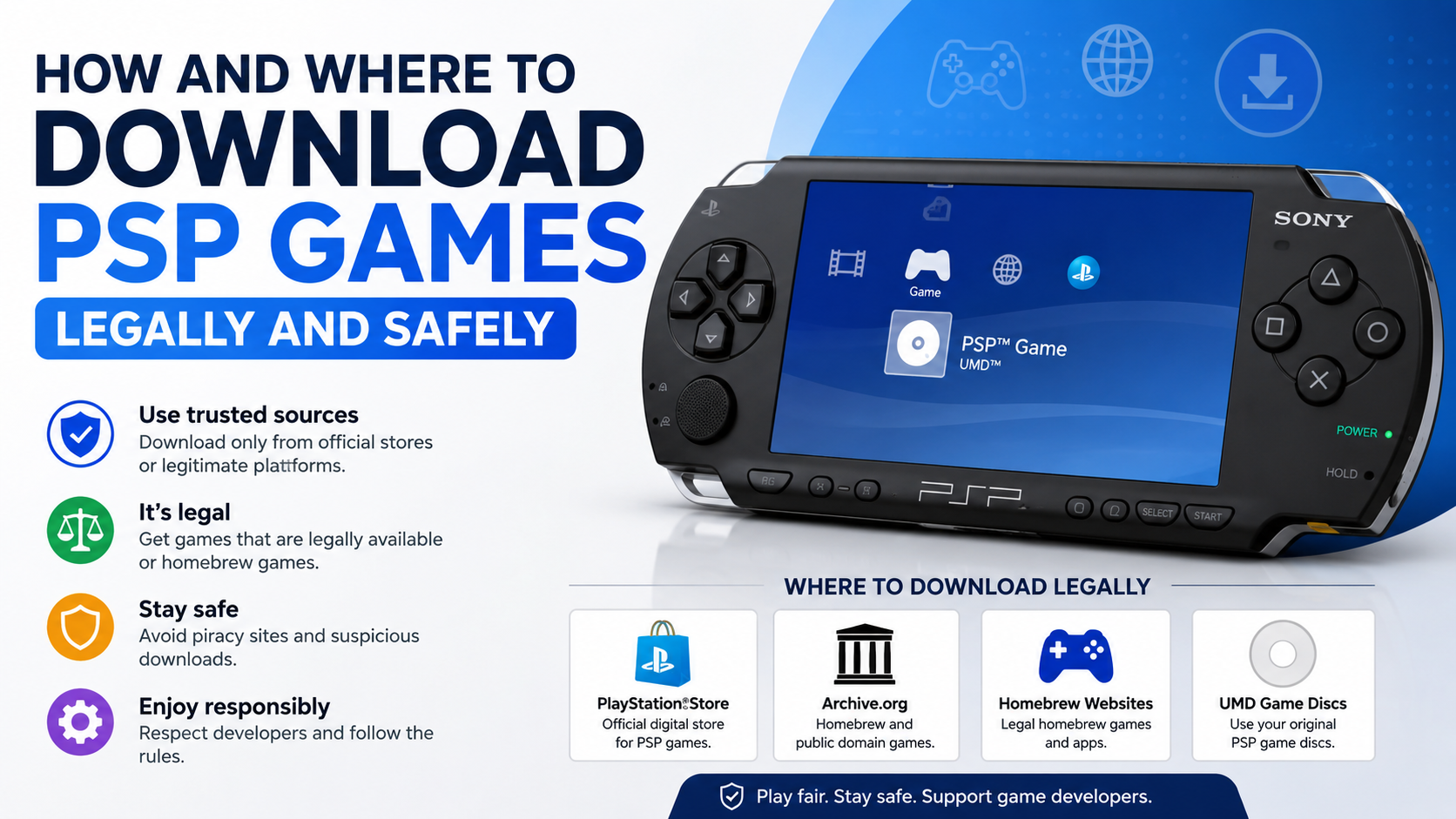
To download games safely, use the official store or the game publisher’s verified website, check device compatibility, review permissions and ratings, and keep your operating system updated. Avoid “cracked,” modified, or pirated installers, even when they promise free coins, premium features, or early access.
This guide explains the safest way to download games in India, including Android phones, Windows PCs, iPhone and iPad, Mac, Linux, and Android games on Windows.
Key Takeaways
- Google Play Store, Microsoft Store, Apple’s App Store or Games app, and reputable PC launchers are the safest starting points.
- Check storage, operating-system version, processor, graphics hardware, and region availability before downloading.
- Google Play Protect scans Play Store apps and can warn about harmful applications installed from other sources.
- On Windows, download desktop games from Microsoft Store, Steam, Epic Games Store, or the publisher’s official website.
- APK files and third-party mirrors carry greater risks, including malware, fake updates, data theft, and copyright issues.
- If a download fails, first check your internet connection, free storage, account, system updates, and security software.
The Safest Way to Download a Game

The safest method depends on your device:
| Device | Recommended source | Typical installation |
|---|---|---|
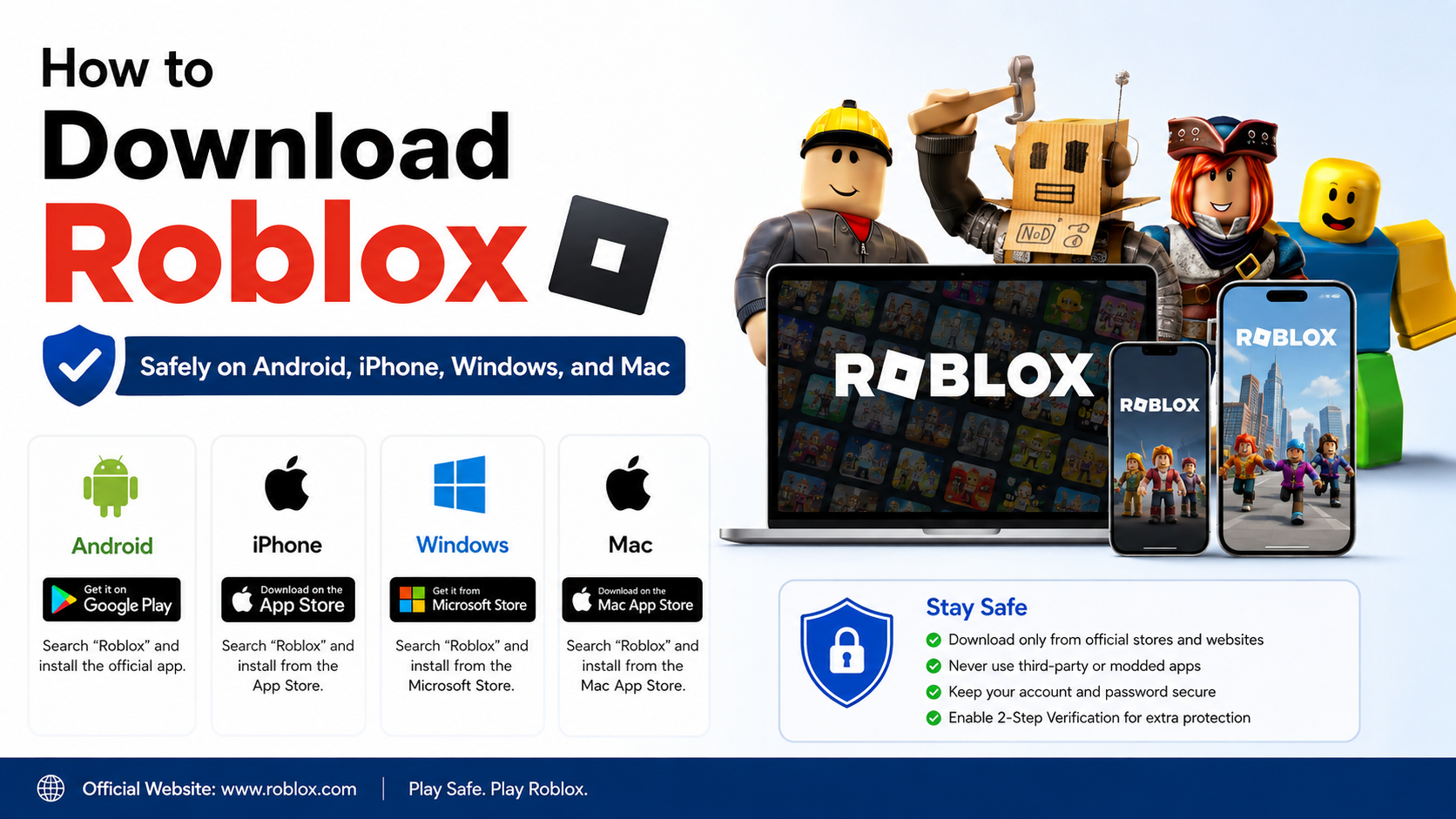
| Android phone or tablet | Google Play Store or the publisher’s official site | Tap Install |
| Windows PC | Microsoft Store, Steam, Epic Games Store, or publisher website | Click Get, Install, or run the verified installer |
| iPhone or iPad | Apple App Store or Apple Games app | Tap the price or Get |
| Mac | Apple Games app, Mac App Store, Steam, or publisher website | Click Get or download the macOS installer |
| Linux PC | Steam, Flathub, or the game developer’s official Linux package | Install through the launcher or package manager |
| Chromebook | Google Play Store or supported web/ChromeOS version | Select Install |
A store download is not an absolute guarantee that a game is harmless. However, official platforms provide publisher identity, update mechanisms, reviews, payment protection, and security checks that random download sites generally do not.
How to Download Games on Android
Download from Google Play Store

- Open the Google Play Store on your Android phone or tablet.
- Tap the Search bar and enter the exact game name.
- Check the developer name, icon, screenshots, age rating, reviews, and download requirements.
- Read the game’s Data safety information and review the permissions it requests.
- Tap Install. For a paid title, confirm the displayed price and payment method.
- Wait for the download and installation to finish, then tap Play.
Google Play may show a game that is unavailable for your device, age group, or country. A listing can also change over time, so always read the current store page rather than relying on an old video or article.
Check Android compatibility first
Before downloading a large game, confirm:
- Android version required by the listing
- Free internal storage, including space needed for additional in-game files
- RAM and chipset performance
- Whether the game requires an internet connection
- Controller, keyboard, or network requirements
- Availability in your Google Play country
Use Wi-Fi for large downloads when possible. On a mobile connection, monitor your data allowance because some games download extra content after installation.
Keep Google Play Protect enabled
Google says Play Protect checks apps on Google Play before download and scans apps from other sources for potentially harmful behaviour. It can warn you, disable an app, or remove it when a threat is detected. Keep it enabled:
- Open Google Play Store.
- Tap your profile picture.
- Select Play Protect.
- Tap the settings icon and ensure app scanning is on.
Google also warns that apps from unknown sources may not be vetted and can carry a higher risk. If you install an APK, download it only from the game developer’s verified website, confirm the package name, scan the file, and turn off “install unknown apps” permission afterwards.
How to Download Games on Windows
Option 1: Microsoft Store
Microsoft’s official steps are:
- Open Microsoft Store from the Start menu or taskbar.
- Search for the game.
- Select the correct listing and review its age rating, publisher, screenshots, permissions, and system requirements.
- Click Get for a free game or the displayed purchase button for a paid game.
- Sign in with your Microsoft account if prompted.
- Select Install and launch the game when the process finishes.
Microsoft recommends downloading programs only from trusted publishers and retail websites. Windows Defender may scan downloaded files, but you should still avoid installers from unknown pages.
Option 2: Steam, Epic Games Store, or an official launcher
For a PC game distributed outside Microsoft Store:
- Visit the launcher’s official website, such as Steam or Epic Games Store.
- Download the launcher, checking that the domain is correct.
- Install and open the launcher.
- Sign in, search for the game, and review its requirements and user reviews.
- Buy or claim the game, then select Install.
- Choose a drive with sufficient free space and allow updates to complete.
Do not download a “portable,” “cracked,” or “pre-activated” version from a file-sharing site. Such packages may contain ransomware, password stealers, cryptocurrency miners, or altered game files. Pirated copies can also prevent updates and violate copyright law.
Windows requirements to review
A game’s store page normally lists:
- Windows version
- 64-bit or 32-bit requirement
- Processor and RAM
- Graphics card and video memory
- DirectX or other runtime components
- Required storage
- Internet or launcher account requirement
Compare the minimum requirements with your PC. Minimum specifications may allow the game to run but do not promise high frame rates or maximum graphics quality.
Play Android Games on a Windows PC
Google Play Games on PC lets users play selected mobile games on Windows. Google’s installation process is:
- On a Windows computer, go to play.google.com/googleplaygames.
- Click Download.
- Open the downloaded installer and follow the instructions.
- If prompted, enable Windows Hypervisor Platform and restart.
- Sign in with the same Google account used on your mobile device if you want supported progress synchronisation.
- Search the catalogue and install a game.
Google displays badges such as Optimised, Playable, Untested, Unsupported, or Not available. These labels help you judge whether a mobile game is likely to work properly on your PC, but compatibility can vary by hardware and game updates.
Google’s published minimum requirements include Windows 10 version 2004 or later, an SSD with available storage, 8 GB RAM, four physical CPU cores, a compatible GPU, administrator access, and hardware virtualisation. Check Google’s current requirements page before installing because they may change.
How to Download Games on iPhone and iPad
- Open the App Store or Apple’s Games app, depending on your device and software version.
- Sign in with your Apple Account if requested.
- Search for the game or browse categories such as Arcade.
- Tap the game and review the developer, age rating, privacy details, reviews, price, and in-app purchases.
- Tap the price or Get.
- Authenticate with Face ID, Touch ID, or your Apple Account password.
- Open the game from the Home Screen or App Library.
Apple advises updating iOS or iPadOS before downloading games. If a game does not appear, it may not support your device, may be restricted by region, or may have been removed from the store.
How to Download Games on Mac
On a Mac:
- Open the Apple Games app or App Store.
- Search for the game and open its product page.
- Check whether the listing supports your macOS version and Mac hardware.
- Click Get or the displayed price.
- Authenticate and wait for installation.
Some Mac games are distributed through Steam or directly by the publisher. Download a direct installer only from the publisher’s genuine domain, and do not bypass macOS security warnings unless you have independently confirmed the developer and file.
How to Download Games on Linux
Linux users can commonly install games through Steam, Flathub, or a distribution’s software centre.
- Update your Linux distribution.
- Install Steam from your distribution repository or the official Steam website.
- Sign in and search for the game.
- Check the listed Linux support, Proton compatibility, controller support, and hardware requirements.
- Install the game to a drive with enough space.
For open-source or indie games, Flathub or the developer’s official page may provide packages. Verify that the package source is trusted and read instructions for your specific distribution.
APK Files and Third-Party Game Downloads: What to Know
An APK is the installation file used by Android. Sideloading means installing an APK outside Google Play. It can be legitimate—for example, when a developer distributes a beta—but it has additional risks.
Avoid a download when:
- The site offers a paid game for free.
- The file is advertised as “MOD,” “unlimited money,” or “premium unlocked.”
- The page uses several fake download buttons or pop-ups.
- The installer requests unnecessary accessibility, SMS, contacts, or administrator access.
- The file name and developer identity do not match the official listing.
- You are asked to disable Play Protect or antivirus protection.
Never enter your Google, Apple, Microsoft, Steam, or bank password into a page reached through an unofficial game download.
Troubleshooting Game Downloads
Download is stuck or fails
- Switch between Wi-Fi and mobile data.
- Restart the router or phone.
- Check available storage.
- Pause and resume the download.
- Update the operating system and store app.
- Sign out and back in to the relevant account.
- On Android, clear the Google Play Store cache.
- On Windows, restart Microsoft Store or reinstall the launcher.
- Check whether the game’s servers or store service are experiencing an outage.
Google specifically recommends checking the connection and storage when Play Store downloads will not complete.
The game installs but will not run
Confirm that your device meets the game’s processor, graphics, RAM, and operating-system requirements. Install pending driver or system updates, restart the device, and close background applications. If the problem continues, consult the game publisher’s support page rather than downloading a replacement executable from an unknown site.
The game is unavailable in India
Availability can vary by country, age rating, licensing, and developer settings. Do not use an unknown VPN, modified APK, or unofficial account to bypass a restriction. Check the publisher’s official announcement or support channel for regional availability.
Frequently Asked Questions
What is the safest way to download games?
Use Google Play Store on Android, Microsoft Store or a reputable PC launcher on Windows, Apple’s App Store or Games app on Apple devices, and trusted repositories or Steam on Linux. Confirm the publisher and requirements before installing.
Is it safe to download games from APK websites?
It is riskier than using Google Play. If an APK is necessary, obtain it only from the verified developer, scan it, inspect permissions, and avoid modified or pirated builds.
Can I download an Android game directly to a Windows PC?
Only if the game supports Windows through Google Play Games on PC or has an official Windows version. A normal Android APK will not run natively on Windows without compatible software.
Why is my Android game download so large?
Many games download additional graphics, maps, voice files, or updates after the initial installation. Use Wi-Fi and keep more free storage than the store’s minimum estimate.
Do free games contain in-app purchases?
Many do. Check the store listing for in-app purchase information, and use purchase authentication or parental controls to prevent accidental spending.
How can I tell whether a game website is official?
Follow the developer link from a recognised store listing, publisher social account, or verified support page. Check the domain carefully and avoid pages filled with redirects, fake “Download” buttons, or requests to disable security tools.
What should I do if I installed a suspicious game?
Disconnect sensitive accounts if necessary, uninstall the app, run Play Protect or antivirus scans, update the device, and change passwords from a trusted device if you entered them into a suspicious page. Monitor payment accounts for unauthorised activity.